What happens when your reception workflow loses its connection at the busiest moment of the day? An internet outage can interrupt visitor intake, identification, calls, and follow-up. With a clear continuity plan, you can keep essential service moving while your connection returns.
This guide explains how to manage short interruptions and longer outages. You will learn when to use approved offline steps, local information, and documented recovery actions. Your plan should cover every device at your location, including Neat Frame, iPad, Android tablet, and Windows computer setups.
Virtual Front Desk is web-based and includes human support through live chat, video calls, and screen sharing from 7 AM to 7 PM EST, Monday through Friday. For help at any hour, call (352) 516-3972, text the business, or email info@totalmedicalsolution.com. You can also explore the 30-day Enterprise free trial after adding a credit card in billing.
Key Takeaways
- Prepare for connection interruptions before they affect visitors.
- Use approved offline procedures for essential reception tasks.
- Include every supported device in your continuity plan.
- Document recovery steps and follow-up responsibilities.
- Reach support 24/7 by phone, text, or email.
Prepare Your Virtual Front Desk for Internet Downtime
Start with a practical plan that keeps essential reception work moving when your connection fails. Match each task to a person, tool, and clear response.
Identify Critical Front Desk Tasks and Business Needs
List visitor sign-in, badge printing, calls, appointment requests, package handling, and emergency escalation for each location. Mark which needs require immediate action and which can wait.
- Note the station, application, and features used for each task.
- Review queues and contact options for urgent calls.
- Check whether your tools support multiple locations from one system.
Assign Downtime Roles Across Your Team
Choose a primary responder, backup responder, visitor coordinator, and technical contact. Share the plan with every team member and confirm who acts during an application outage.
For Microsoft Teams station calling, ask your administrator to assign a Teams Calling Plan. Each user receiving station calls also needs a Teams Phone Standard license. Unlicensed users may miss notifications.
Compare Enterprise at $109 per active station, Professional at $49 plus usage, and Essential at $29 monthly. Call (352) 516-3972 or email info@totalmedicalsolution.com for 24/7 support, setup help, or a demo.
Virtual Front Desk Downtime Backup Essentials
Simple preparation helps your reception team respond with confidence during a connection issue. Keep supplies, account details, and support contacts ready before service slows.
Keep Devices, Forms, and Contact Information Available
Place printed visitor forms, staff numbers, escalation steps, and approved instructions near the reception area. Virtual Front Desk supports Neat Frame, iPad, Android tablet, and Windows computer setups. Recent computers should run the latest Chrome or Safari version.
- Set Android tablets to Chrome full-screen or kiosk mode with a pinned app.
- Label each station and keep a working device available.
- Store emergency information where authorized users can read it quickly.
Document Access, Account, and Permission Requirements
Securely record the account owner, administrator, billing contact, and user permissions. Include guidance for account settings, history, logs, infrastructure, HIPAA, firewall rules, and access control.
Set Up Communication Channels
For help with setup or service recovery, call (352) 516-3972, text support, or email info@totalmedicalsolution.com. You can also review healthcare staffing cost reduction options.
Check Your Station, Kiosk Mode, and Devices
Reliable equipment gives your virtual front desk a smoother return after a connection issue. Review each station before visitors arrive, then record any fault and its fix.
Verify Tablets, Windows Computers, and Neat Frames
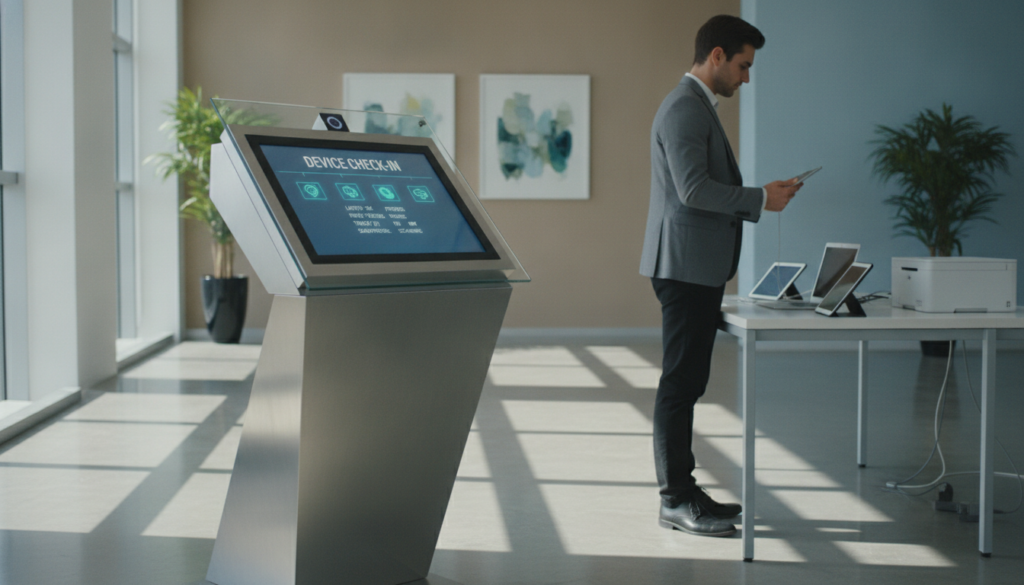
Neat Frame remains the recommended device. You can also use iPads, Android tablets, and Windows computers. Test power, network access, camera, microphone, speaker, and screen at every location.
- Set Android tablets to Chrome full-screen with a pinned app and kiosk mode.
- Enable Guided Access on iPads and Windows Kiosk mode on each computer.
- Review branding, instructions, and key features so visitors know what to do.
Confirm Printers, Scanners, and Card Readers
Test badge printing, document scanning, and the card reader with an approved payment workflow. Confirm supplies remain available and that cables connect securely.
Keep a short device checklist near the desk. For help with your virtual front desk, call (352) 516-3972 or email info@totalmedicalsolution.com for 24/7 support. You can also review this patient check-in guide.
Keep Calls Moving When the Service Is Unavailable
When a connection breaks, clear call routing keeps visitors from waiting alone. Set these pathways before an outage so your team can respond without opening the reception application.
Use Call Queues, Groups, and Microsoft Teams Routing
Connect station notifications to Microsoft Teams desktop and mobile apps. A visitor can start a video call with a Teams user or call queues. Virtual Front Desk also supports phone calls, SMS, email, forwarding, and call queues.
- Test each user, group, and queue on familiar devices.
- Keep alternate phone and email options ready.
- Ask your team to confirm who handles urgent issues.
Record Calls, Visitor Requests, and Follow-Up Needs
Use a paper or local log to capture the caller’s name, organization, number, request, time, owner, and promised response. Review open requests when service returns, then match each call with activity history.
For 24/7 routing assistance, call (352) 516-3972, text the business, or email info@totalmedicalsolution.com. Live chat, video, and screen-sharing support runs Monday through Friday, 7 AM to 7 PM EST.
| Channel | Best use | Action |
|---|---|---|
| Teams | Station alerts | Test user and queue routing |
| Phone or SMS | Urgent requests | Share alternate contact details |
| Detailed follow-up | Assign an owner and response time |
Manage Visitors Without a Working Front Desk App
Keep visitor control simple when the reception app cannot load. A calm process helps your team protect people, records, and host notifications at each location.
Use Paper Sign-In Forms and Visitor Logs
Place paper forms and a visitor log at the front desk. Record arrival time, name, host, organization, visit purpose, and departure time. Assign one team member to review entries while another contacts hosts.
- Use approved identification steps and collect only authorized information.
- Prepare blank badges with a manual number system when printing is unavailable.
- Keep document signing instructions, scanning steps, and QR-code options nearby.
Preserve Identification, Badge, and Document Workflows
Virtual Front Desk supports custom forms, ID capture, selfie capture, document signing, badge printing, and sign-out tracking. Your virtual front station can also share documents, scan files, and support branded screens through centralized management.
Keep the kiosk in its usual mode when possible, then explain any temporary change. For help with visitor workflows, call (352) 516-3972, text the business, or email info@totalmedicalsolution.com.
| Task | Manual method | Record |
|---|---|---|
| Arrival | Paper form | Time and host |
| Identity | Approved check | Authorized details |
| Badge | Numbered card | Issue and return |
Maintain Business Operations During an Extended Outage
Long outages require a clear routine, not improvised records. Keep your front desk process limited to approved forms, trusted systems, and assigned staff. This protects your business while the downtime continues.

Use Approved Offline Forms and Local Information
EPIC Shadow Read Only lets authorized users read data saved before the outage. It does not allow new charting or changes. EPIC BCA creates daily schedules and basic patient information every 12 hours.
- Use BCA Web at downtime.ochin.info.
- If it fails, use the approved BCA PC for schedules.
- For a longer outage, use OCHIN’s recovery portal at dr.ochin.info.
Protect Sensitive Visitor and Customer Data
Lock paper forms, computers, and other devices. Limit account access to assigned users. Send information only through approved tools, and store completed forms securely. Set a review time and name the user who enters records after service returns.
Your virtual front desk team can also review our medical assistant task guide. Prepaid credits receive a 20% bonus at $500 and 25% at $1,000. For continuity, privacy, billing, or recovery support, call (352) 516-3972 or email info@totalmedicalsolution.com.
Restore Your Virtual Front Desk After Connectivity Returns
Do not reopen visitor service the moment the connection returns. Give your team a few minutes to confirm that each tool works and that no requests were lost.
Test Stations, Call Features, and Integrations
Wait for stable service, then restart the station. Check the computer, camera, microphone, speaker, browser version, and app load. Recent computers should use the latest Chrome or Safari version.
- Place test calls to Microsoft Teams users and queues. Check alerts in both desktop and mobile apps.
- Test printers, scanners, card readers, iOS and Android devices, kiosk settings, and screen branding.
- Compare paper logs with restored activity history. Enter approved records once to prevent duplicates.
- Confirm account access, call forwarding, SMS, email, video calls, and phone calls.
Restore service only after every key feature passes its test. For help with integration checks or recovery after downtime, call (352) 516-3972, text support, or email info@totalmedicalsolution.com. You can also review this healthcare recovery example for practical guidance.
Review Downtime Records and Improve Your Backup Plan
Each outage offers useful evidence for your business. Review the log soon after service returns. Record the start time, affected location, failed station, missing features, visitor count, calls, and final resolution.
The EPIC Downtime Procedures Guide was last reviewed on April 17, 2025. It covers registration, telephone encounters, appointment requests, and clinical documentation. Use it as a model for regular plan reviews.
- Compare paper records, call notes, computer alerts, account history, and application logs. Look for duplicate entries or open requests.
- Ask your team which steps worked, which tools caused issues, and which contact options need clearer instructions.
- Update station procedures, permissions, branding, device checks, and location contacts.
- Schedule a recurring review so your plan stays current.
Virtual Front Desk provides activity history, station monitoring, multi-location management, and account logs. Plans include Enterprise at $109 per station, Professional at $49 plus usage, and Essential at $29. Review data recovery planning and telehealth reception services for added guidance.
For 24/7 help with your virtual front desk, call (352) 516-3972, text support, or email info@totalmedicalsolution.com.
Conclusion
A resilient virtual front desk plan keeps visitor service, identification, calls, and core business work moving when connectivity fails. Prepare offline forms, an alternate device, approved information, clear routes, and named recovery owners.
Your team can use Microsoft Teams routing, paper logs, BCA schedules, and secure local procedures. When service returns, test every station, application, integration, printer, scanner, card reader, and communication channel before normal work resumes.
Review each incident to strengthen your virtual front process. Explore continuity planning guidance and remote medical assistant support for added ideas.
For 24/7 assistance, call (352) 516-3972, text the business, or email info@totalmedicalsolution.com. Request support or a demo to keep your operations ready through changing hours and unexpected interruptions.